

Releases Business
A release is how you communicate what your team is shipping and when. It groups work items from across your workspace into a named, versioned deliverable - with a target date, a lead, a changelog, and a clear status that tells everyone whether this version is in progress, out the door, or cancelled.
Releases live at the workspace level, not the project level. That means a single release can pull in work items from multiple projects. A release for "v2.3.0" might include a backend fix from your API project, a UI change from your web project, and a docs update from your content project - all tracked together in one place.
This is the key distinction between releases and cycles. Cycles are sprint containers - time-boxed, project-scoped, for managing ongoing development. Releases are version containers - for grouping and communicating deliverables across projects, regardless of which cycle the work was done in.
Set up releases for your workspace
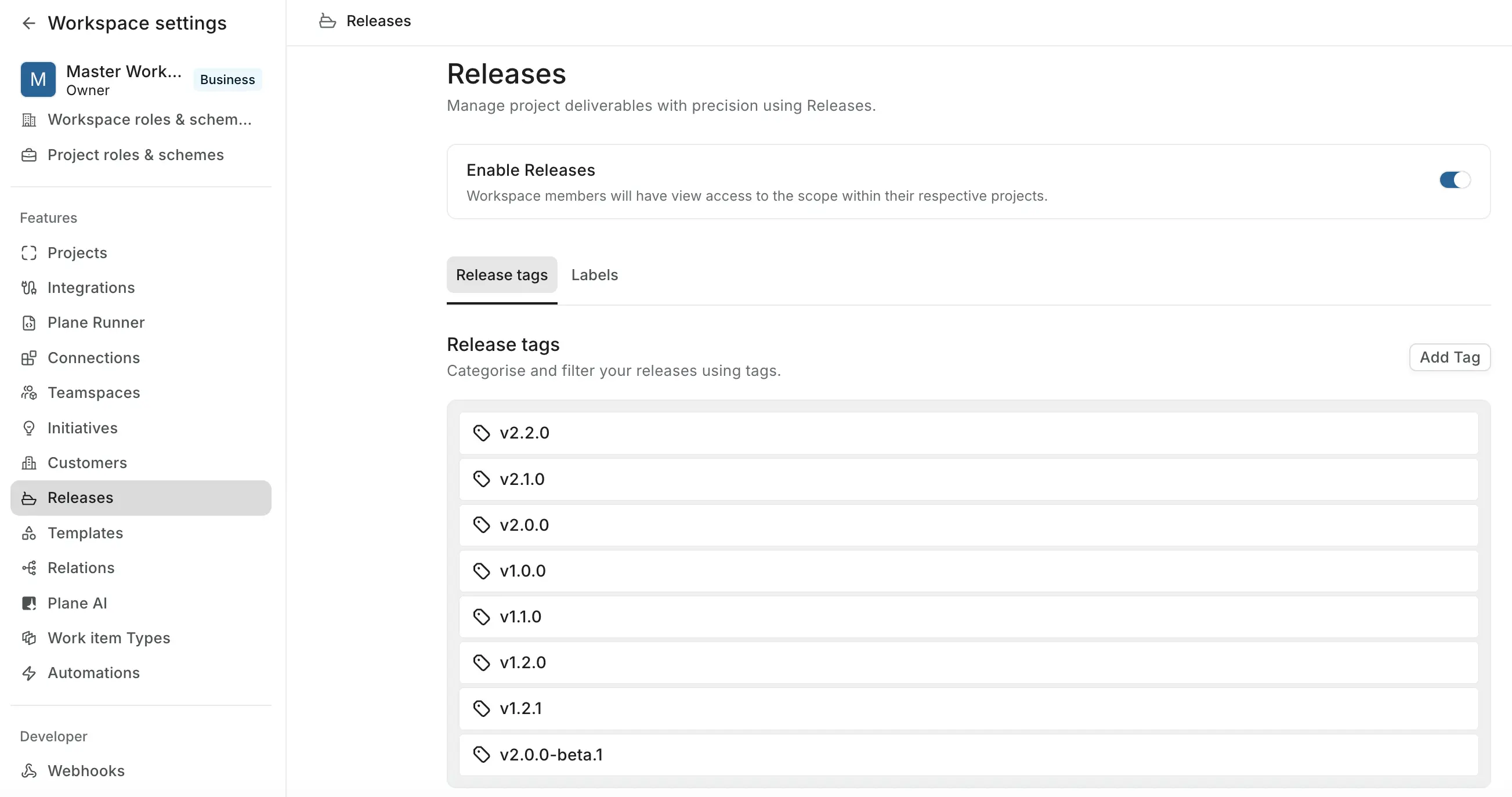
Releases must be enabled at the workspace level before anyone can use them.
- Go to Workspace Settings → Releases.
- Toggle on Enable Releases.
Once enabled, workspace members have view access to releases in the sidebar. Owners and Admins can create, edit, and delete them.
Manage release tags
Tags are version identifiers shared across all releases in the workspace. Create them before you start creating releases, or add them as needed.
To create a tag:
- Go to Workspace Settings → Releases → Release tags.
- Click Add Tag.
- Enter a version string (e.g.,
v2.3.0). - Save.
To edit or delete a tag:
- Go to Workspace Settings → Releases → Release tags.
- Click ··· on the tag row and select Edit tag or Delete tag.
Deleting a tag removes it from any releases it was assigned to.
Manage labels
Labels let you categorize releases across the workspace - for example by team, platform, or release type.
To create a label:
- Go to Workspace Settings → Releases → Labels.
- Click Add Label.
- Enter a name and choose a color.
- Save.
To reorder labels: Drag the label rows into the order you want.
To edit or delete a label:
- Go to Workspace Settings → Releases → Labels.
- Click ··· on the label row and select Edit label or Delete label.
Create a release
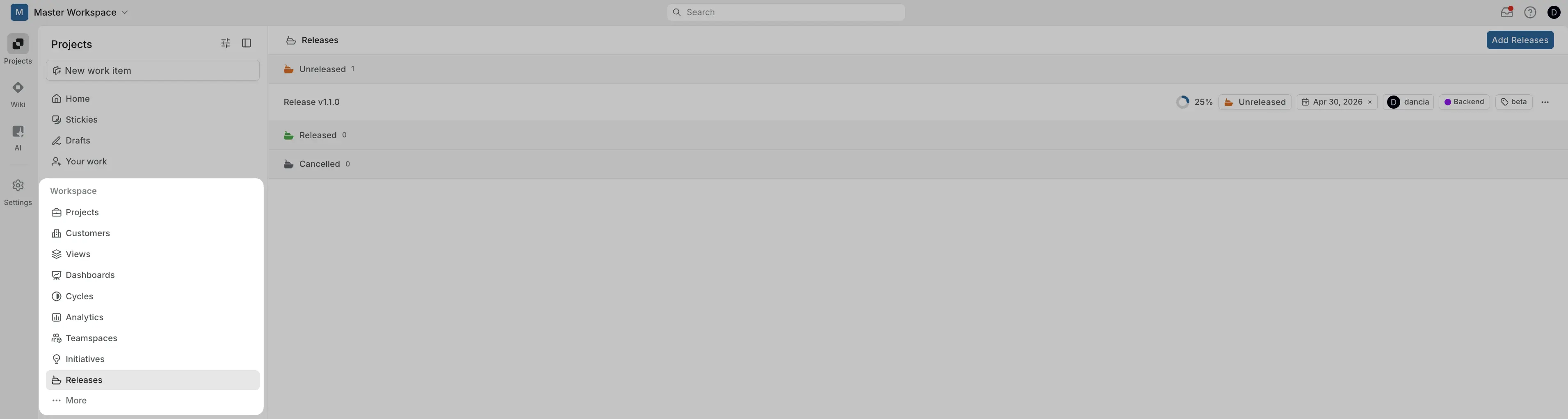
Go to Releases in the workspace sidebar.
Click Add Release.
Fill in the release details:
Field Description Name Identifies the release in the list and throughout the workspace. Release names must be unique within the workspace. Description A rich text field for context - background, goals, or any notes the team needs before the work starts. Status Tracks where the release is in its lifecycle. Values: Unreleased (default), Released, or Cancelled. Tag A version identifier - for example, v2.3.0or2024-Q4. Tags are shared across all releases in the workspace. A release can have one tag.Labels Let you categorize and organize releases. A release can have multiple labels. Target date The planned release date - when you intend to ship. This is separate from the actual release date, which you can record once the work is done. Lead The person responsible for the release. One user, visible in the release list. Click Create Release.
You'll land on the release detail page, where you can start adding scope and writing the changelog.
Work with a release
Each release has three tabs: Overview, Scope, and Changelog.
Overview
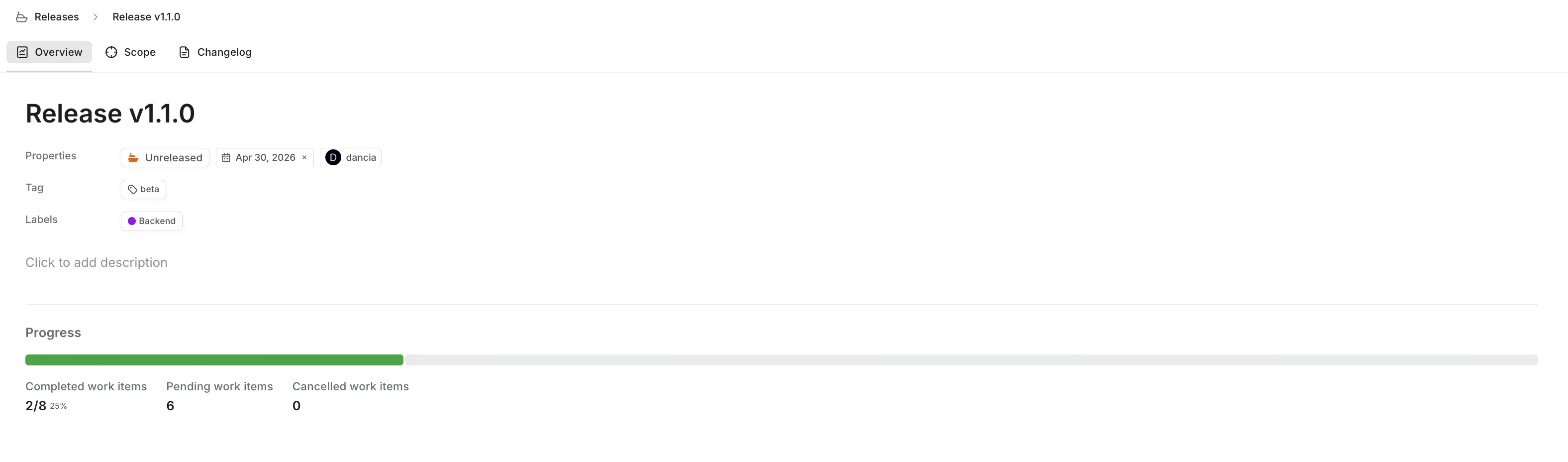
The Overview tab shows the release description, all selected properties, and a live progress tracker.
The progress bar fills proportionally as work items in the release are completed. Counters display completed work items (e.g., 18/22 - 82%), pending work items, and cancelled work items.
Click any property chip - Tag, Label, Lead, or Target date - to edit it inline. Click Click to add description to write or update the release description.
Track progress
Plane tracks three counts for every release based on the current state of linked work items:
- Completed work items - work items whose state group is Completed
- Cancelled work items - work items whose state group is Cancelled
- Pending work items - everything else (Backlog, Unstarted, Started)
These update automatically as your team moves work items through states. The progress indicator in the release list and on the Overview tab reflects the completed count against the total.
Plane does not automatically change a release's status when all work items are completed. You mark the release as Released manually when you're ready.
Release status
A release moves through three statuses that reflect where it is in its lifecycle:
- Unreleased - the default status when a release is created. Work is still in progress, and the scope and changelog are being built out.
- Released - the release has shipped. Use this to mark the release as complete and signal to your team that it's out.
- Cancelled - the release was abandoned. Use this when a planned release is no longer going forward, so the scope and history are preserved without cluttering your active releases.
Click the status chip on the Overview tab to change it. The Releases list groups releases by their status, so updating this keeps your list organized and makes it easy to see what's active, shipped, or cancelled.
You can also set the actual release date here to record when the version shipped.
Cancelled releases remain in the list and all their data is preserved. Work items linked to a cancelled release are not affected.
Scope
The scope of a release is the set of work items it contains - everything your team needs to ship for this version. Work items come from any project in the workspace. There is no restriction to a single project.
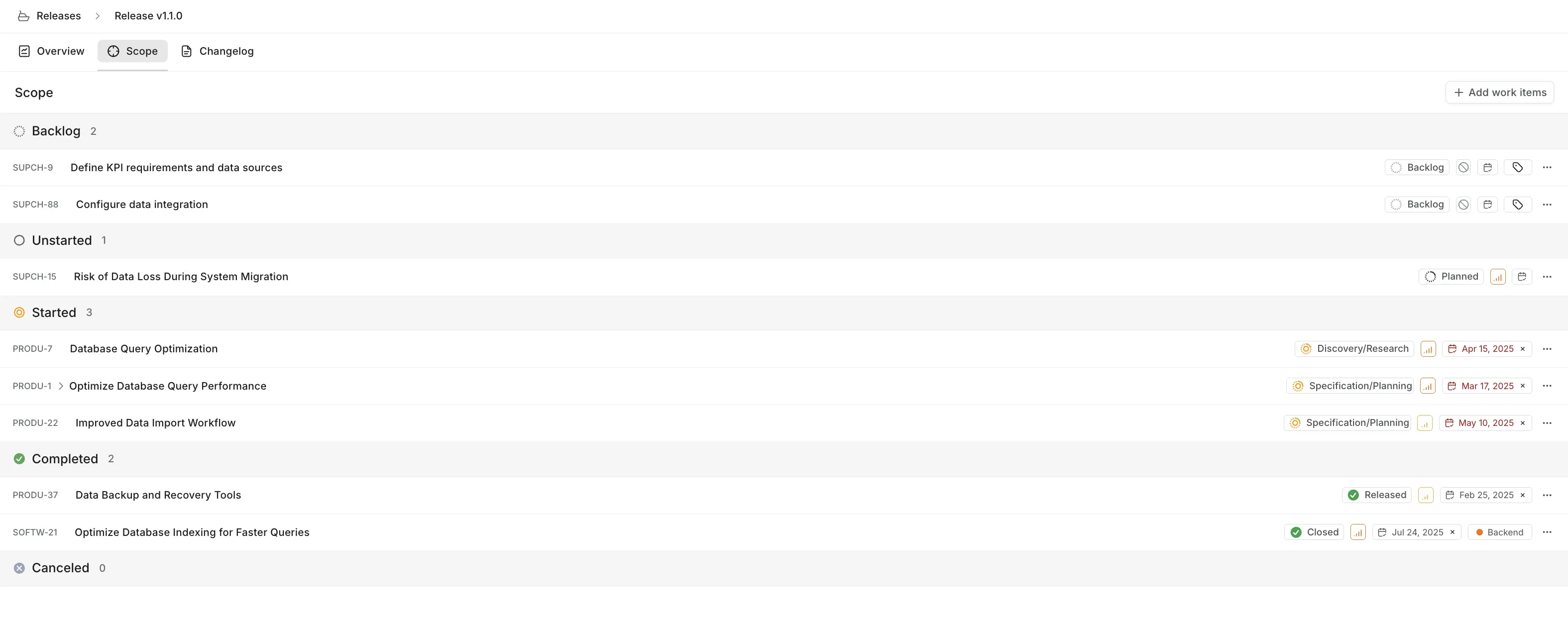
Click Add work items to search and attach items by title or ID. Work items from any project in the workspace can be scoped to a release. To remove an item, hover over it and click the remove icon.
Add work items to a release
- Open the release and go to the Scope tab.
- Click Add work items.
- Search for work items by name or identifier.
- Select the items you want to include.
- Click Add selected work items.
You can add work items from any project in the workspace.
Remove a work item from a release
- Open the release and go to the Scope tab.
- Find the work item you want to remove.
- Click the ··· menu on the work item row and select Remove from release.
The work item remains in its project - only the link to the release is removed.
A work item's existing state drives the progress calculation automatically - you don't need to mark anything as "done in release" separately.
Adding a work item to a release does not move it, reassign it, or change its state. It creates a link. The work item stays in its project, continues through its normal workflow, and appears in the release's Scope view alongside everything else you're tracking for this version.
Removing a work item from a release removes the link only. The work item remains in its project.
Changelog
The Changelog tab is a separate rich text document for recording what changed in this version - new features, fixes, breaking changes, anything you want to communicate to users or stakeholders. It's independent from the description and intended as the outward-facing record of the release. Edit it any time before or after shipping. The changelog is blank by default.
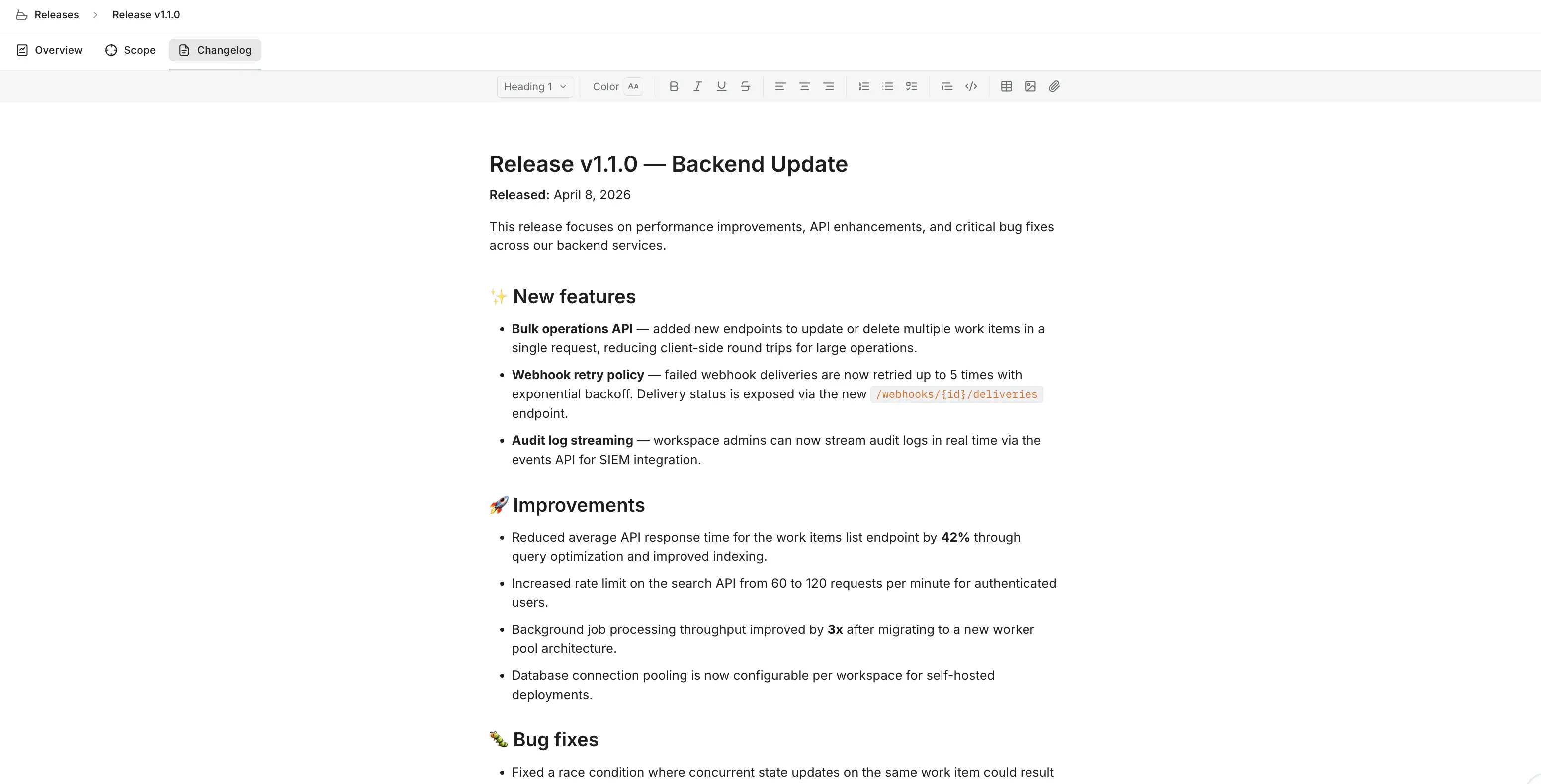
The editor supports all the same blocks available in Pages and Wiki. Changes save automatically as you type, and the changelog is visible to all workspace members who can access the release.
TIP
Use the Scope tab to audit completed work items, then use the Changelog tab to write polished, user-facing notes based on that list.
Work with releases from a work item
The Releases property
Every work item has a Releases property in its detail panel, in the same section as Cycle and Module. It works in both directions - you can link a work item to a release from the work item itself, not just from the Releases page. Whatever you do from either side produces the same result: a link between the work item and the release.
A work item can belong to more than one release. If you're shipping the same fix in both v2.3.1 (a patch) and v3.0.0 (the next major), you can add both releases to the same work item. The work item appears in the scope of each release and counts toward the progress of each.
The Releases property is only visible when releases are enabled for your workspace. If you don't see it in the detail panel, check that releases have been turned on in Workspace Settings → Releases.
Assign a release from the work item detail panel
- Open the work item.
- In the sidebar, find the Releases property under the project structure section.
- Click the property to open the release picker.
- Search for or select the release you want to link.
- The link is saved immediately.
To link multiple releases, open the picker again and select another release. Each selection adds to the list without removing the previous ones.
Remove a release from the work item detail panel
- Open the work item.
- In the sidebar, find the Releases property.
- Click on the release you want to remove.
- Deselect it from the picker.
Removing the release from the work item is the same as removing the work item from the release's Scope tab - the work item remains in its project, unchanged.
Assign a release inline from list, board, and table layouts
You do not need to open the detail panel to assign a release. In any project view, you can update the Releases property directly on the work item row or card.
In list layout: Click the Releases property on the work item row. If the column is not visible, enable it from Display → Properties → Releases.
In table layout: Click the Releases cell in the work item row. The release picker opens inline. Add or remove releases without leaving the spreadsheet.
In board (kanban) layout: Click the Releases indicator on the work item card. If releases are not showing on cards, enable them from Display → Properties → Releases.
The Release picker custom property
There is a second, separate way releases can appear on a work item: as a Release picker custom property added to a work item type.
When a workspace admin adds a Release picker property to a work item type in Workspace Settings → Work Item Types, work items of that type get a multi-select field for picking one or more releases. It looks and behaves like the built-in Releases property - searchable dropdown, multi-select - but it is a custom field, not a system field.
For how to create a Release picker property on a work item type, see Work item types.
Manage releases
Edit a release
- Go to Releases in the workspace sidebar.
- Click ··· on the release row and select Edit, or open the release and update properties directly from the Overview tab.
- Change name, status, dates, lead, tag, labels, or description as needed.
Delete a release
- Go to Releases in the workspace sidebar.
- Click ··· on the release row and select Delete.
- Confirm.
Deleting a release removes it permanently. Work items that were linked to the release are not deleted - they remain in their projects.